Working with Workspaces
Workspaces contain menus and pages that enable you to configure your overall application experience and establish initial project, portfolio, and program data. The Workspace menu also enables you to access and work with any projects, portfolios, or programs you have created or have access to.
You can access the following apps and pages in a workspace:
- Home: Displays general details about the workspace and contains a workspace summary including child workspaces.
- Cost and Funds: Enables cost engineers and project managers to capture the project budget and to track, manage, and report on project costs.
- Dashboards: Enables you to create custom charts and dashboards to monitor the performance of all of the projects, portfolios, and programs in your workspace.
- Files: Enables you to create standardized folder template structures that can be used across your organization.
- Integration: Enables you to run and monitor workspace level business flows set up by your administrator. Use business flows to send or receive data between Primavera Cloud and external applications, such as P6 EPPM.
- Portfolio Analysis: Enables you to monitor the health and status of all portfolios in the workspace.
- Reports: Enables you to create and run reports on the projects and portfolios in your workspace. Create print layouts to run report on individual data records.
- Resources: Enables you to create an inventory of labor, nonlabor, and material resources that can be assigned to projects.
- Strategic Alignment: Enables you to define and monitor short and long term business strategies and organizational goals.
- Workflows and Forms: Enables you to automate and customize complicated business processes, like submitting and reviewing project proposals.
- Summary and Settings: Enables you to configure workspace-level data and security.
- More Items: Enables you to organize your apps and select which apps are shown or hidden.
Working with Object Home Pages
You can use an object home page to view additional details about the object, add it as a favorite, access Summary & Settings, and organize your apps for the object.
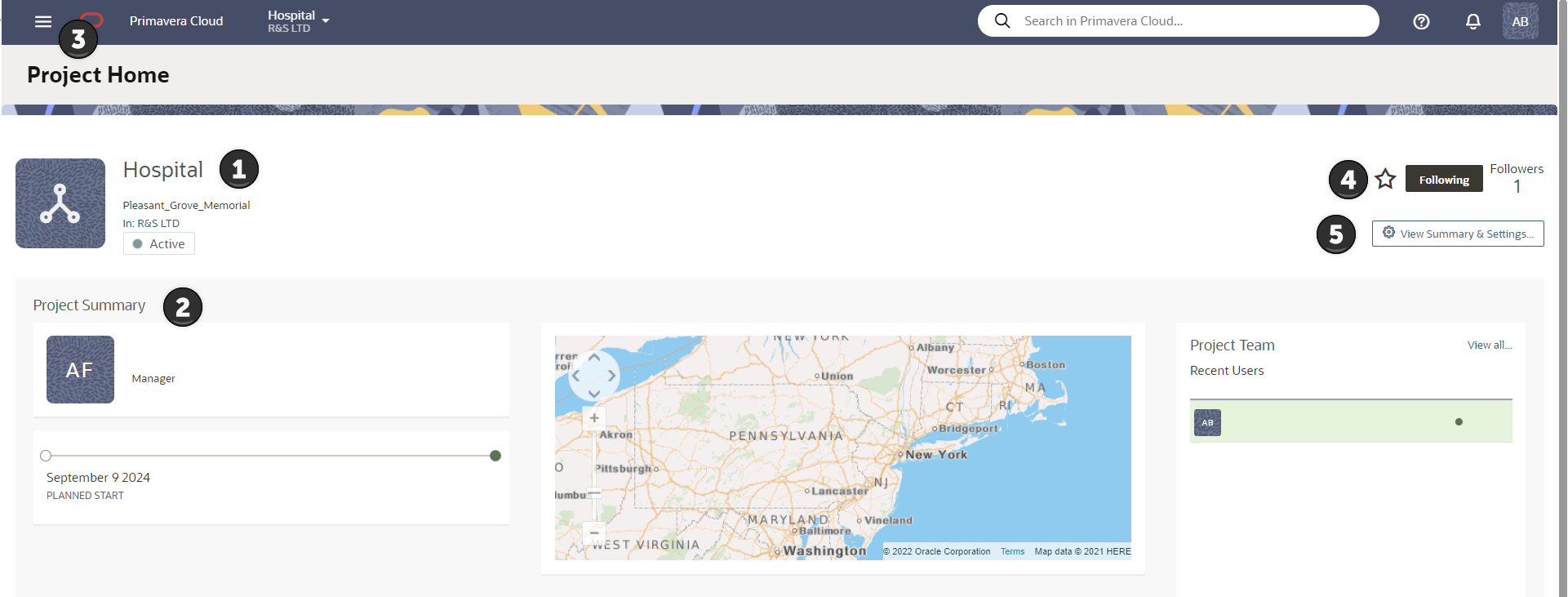
Table of Screen Highlights
Item | Description |
|---|---|
1 | Object details: Review additional object details such as name, owning workspace, and status badge (if applicable). |
2 | Object Summary: Review additional object details such as manager, location, projects and portfolios included, and more. Options available depend on your context. |
3 | More items: Organize your apps by hiding or showing apps and arranging the sequence that they appear in. Any apps you hide or show will only effect your view in the application. |
4 | Favorite, Follow, Followers: You can add a project or portfolio as a favorite, follow a project, or view users who follow a project. |
5 | Summary and Settings: Launch the Summary and Settings panel to configure data, objects, user groups, and permission sets. Configuration options will vary depending on whether you open a workspace, project, or portfolio. |
Comentários
Postar um comentário